
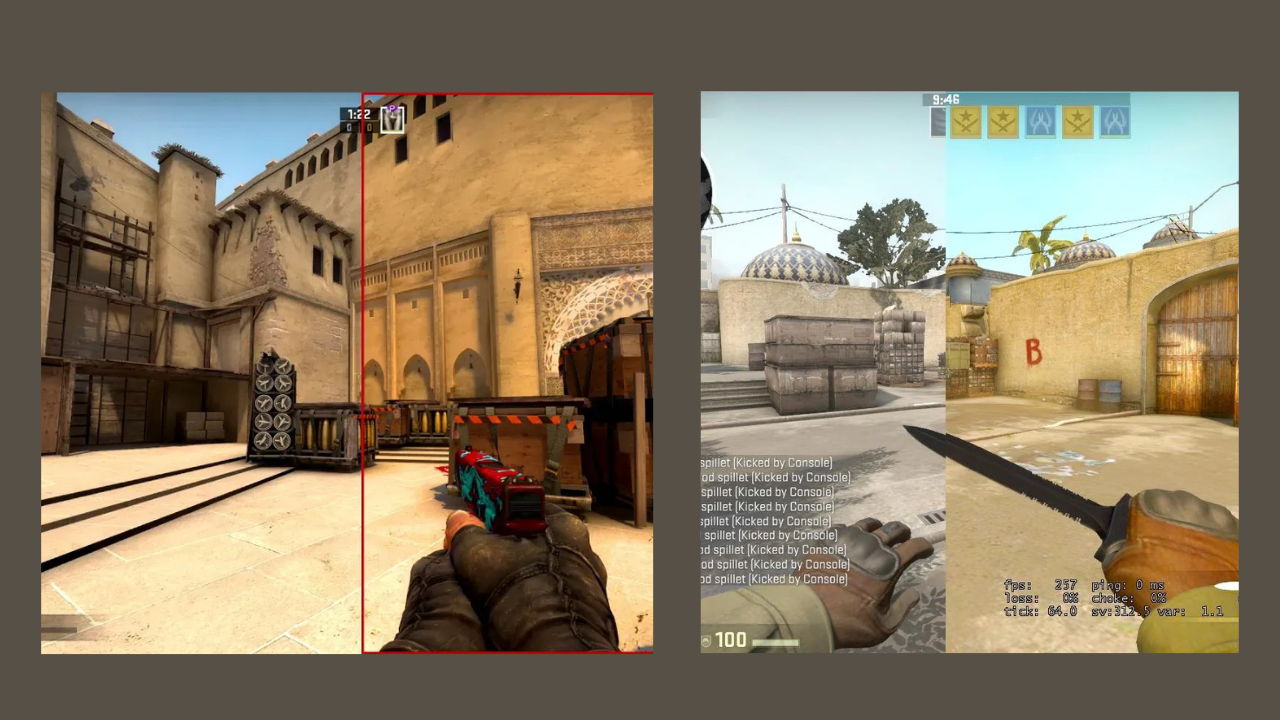
If you want your games to look sharper, more precise, and more vibrant, VibranceGUI is one of those small tools that makes a surprisingly big difference. It automatically adjusts your colour levels to deliver richer visuals and better visibility when it matters most, especially in fast-paced titles like CS: GO. Whether your system runs on NVIDIA or AMD, or you’re playing on a desktop or laptop, the program manages digital vibrance (saturation) so you don’t have to tweak settings every time. In the guide ahead, we’ll break down how to download VibranceGUI, how it works across different GPUs, how to set it up on laptops, which settings work best for CS: GO, and what to do if the software refuses to open or starts acting up.
1. What is VibranceGUI and Why Use It?
VibranceGUI is a small but handy Windows tool that handles adjusting your graphics card’s colour settings for you. When you launch a game, it automatically boosts digital vibrance on NVIDIA cards or saturation on AMD cards, giving you richer colours, sharper visuals, and better enemy visibility without lifting a finger. Instead of opening your driver panel and changing these settings every time you play, the program handles everything in the background so your games always look bright and clear while your desktop stays at normal colour levels.
For CS: GO players, especially, boosting vibrance can make a noticeable difference in how clearly enemies appear against the map. Brighter, more defined colours help opponents stand out, even in shadowy corners or crowded areas where visibility is usually a challenge. That’s why so many competitive and pro players rely on vibrance tweaks during matches. With VibranceGUI handling everything automatically, the whole process becomes quick, consistent, and hassle-free.
2. VibranceGUI Download Guide
Downloading and setting up VibranceGUI is simple. Follow this walkthrough:
- Download the latest version of VibranceGUI from its official source or a trusted software platform.
- Extract or install the program after downloading.
- Launch the application. If prompted, install Microsoft .NET Framework 4 or higher.
- Choose your default Windows vibrance level — this is the colour level your desktop will use.
- Add games manually to the process list so VibranceGUI knows when to automatically boost vibrance.
- Set the vibrance level for gaming — typically much higher than your desktop.
- Save all settings and keep VibranceGUI running in the background.
The app uses very few system resources and has a negligible performance impact.
3. VibranceGUI for NVIDIA Users
For NVIDIA users, VibranceGUI integrates directly with the NVIDIA Driver API to automate the “Digital Vibrance” feature found in the NVIDIA Control Panel.
Key Points for NVIDIA Users:
- Digital Vibrance is available in the NVIDIA Control Panel under Display → Adjust Desktop Color Settings.
- VibranceGUI automates the switching between desktop vibrance and in-game vibrance.
- Many CS: GO pros use 75% to 100% vibrance for sharper, more visible colours.
- There is no FPS or performance loss.
Recommended Workflow:
- Open the NVIDIA Control Panel and set your preferred desktop vibrance to 50–55% (typically).
- Set in-game vibrance to a higher level (70–100%) using VibranceGUI.
- Add CS: GO or other games to the application list.
- Test in-game visibility and fine-tune accordingly.
NVIDIA users generally get the smoothest and most consistent results because digital vibrance is well-supported on desktop GPUs.
4. VibranceGUI for AMD Users
AMD users can also use VibranceGUI, though AMD uses “Saturation” instead of NVIDIA’s “Digital Vibrance.” The tool communicates with AMD drivers to automatically apply saturation changes.
Key Notes for AMD Users:
- AMD saturation levels can vary depending on the driver version.
- Some older or OEM-modified drivers may not support saturation control.
- VibranceGUI allows separate desktop and in-game saturation values.
- Always test after setup to ensure switching works properly.
AMD users may need to check their driver settings manually before using VibranceGUI to confirm that saturation adjustments are supported.
5. Using VibranceGUI on Laptops
Laptops often introduce complications because many manufacturers disable or limit vibrance control.
Laptop-Specific Considerations:
- Some NVIDIA laptop GPUs do not support digital vibrance due to driver limitations.
- Hybrid GPUs (Intel + NVIDIA/AMD) may cause vibrance detection to break.
- Manufacturer colour profiles may override GPU settings.
- If you cannot manually adjust vibrance/saturation on your laptop, VibranceGUI may not function.
Laptop Workflow:
- Test digital vibrance or saturation manually in NVIDIA/AMD control panels.
- If adjustable, proceed with installing VibranceGUI.
- Keep desktop vibrance low for everyday use (50–55%).
- Raise in-game vibrance to 75–90%.
- Test visibility across different lighting conditions in CS: GO.
- Ensure OEM utilities such as night light or adaptive colour are disabled.
Laptop support varies widely, so it is essential to test driver compatibility first.
6. Best VibranceGUI Settings for CS: GO
CS: GO is one of the primary games where VibranceGUI shines. The correct settings can significantly improve clarity.
Recommended CS: GO Settings:
- Windows/Desktop Vibrance: 50–60% for everyday use.
- In-Game Vibrance: 75–100% depending on personal preference.
- Profile Detection: Add “csgo.exe” to the VibranceGUI process list.
- High Visibility Areas: Try settings in different map lighting conditions.
- Avoid Eye Strain: If you play for long hours, consider vibrance around 70–80%.
Higher vibrance helps players quickly distinguish player models from backgrounds, smoke, and shadow-heavy areas.
7. Troubleshooting: VibranceGUI Not Opening or Not Working
Even though VibranceGUI is simple, issues may still appear.
Issue: VibranceGUI Not Opening
Possible causes:
- Missing .NET Framework 4 or higher
- Unsupported laptop GPU drivers
- The antivirus blocks the program
- Damaged or incomplete installation
- Not running as administrator
- Hidden in the system tray
Fixes:
- Install .NET Framework if required.
- Right-click and choose “Run as Administrator.”
- Add the program to antivirus exceptions.
- Reinstall the application.
- Confirm the GPU driver supports vibrance or saturation control.
Issue: Vibrance Not Switching In-Game
- Ensure the correct executable is added (csgo.exe).
- Some launchers or borderless modes interfere; try full-screen.
- Verify background services aren’t overriding colour settings.
Issue: Desktop Colours Look Wrong After Game Exit
- Set the correct Windows vibrance in VibranceGUI.
- Disable Windows night mode or OEM colour features.
- Ensure revert settings are enabled.
VibranceGUI typically runs smoothly once configured, and most issues stem from unsupported laptop drivers or missing system components.
8. Safety, Optimization & Extra Tips
Safety
VibranceGUI is considered safe to use. It does not interfere with game files and uses only GPU driver APIs.
Optimization Tips:
- Keep GPU drivers updated.
- Create vibrance profiles for every major game.
- Avoid excessive vibrance to reduce eye strain.
- Use full-screen mode for best detection.
- Turn off colour-adjusting utilities.
- Recheck laptop display profiles if colours appear inconsistent.
9. Conclusion
VibranceGUI is a handy little tool for anyone who wants richer, more transparent colours in their games without messing up their desktop. It works smoothly with both NVIDIA and AMD setups, whether you’re on a complete desktop build or a laptop, and gives you the freedom to fine-tune vibrance or saturation exactly how you like it. The result is better visibility, sharper in-game detail, and a noticeable boost in overall competitive clarity—all without any extra effort once it’s set up.
For CS: GO players in particular, adjusting VibranceGUI to boost colour levels during matches can make a noticeable difference. Enemies are easier to spot, the map looks clearer, and the overall visual environment feels more defined. Because the program is light, quick to set up, and automatically switches between your desktop and in-game settings, it stays out of the way while still giving you a real advantage. Its broad compatibility with different GPUs only adds to its value, making it one of the most reliable tools for improving visibility in competitive games.
Read More: NewsDetects.